Black Ops 6 enthusiasts have embarked on an exhilarating journey with the 2024 installment of the series, which transports players back to the 1990s with high-octane Multiplayer gameplay, a compelling Campaign, adrenaline-pumping Zombies, and a revolutionary connection with Warzone. Each new season brings additional content for players to enjoy.
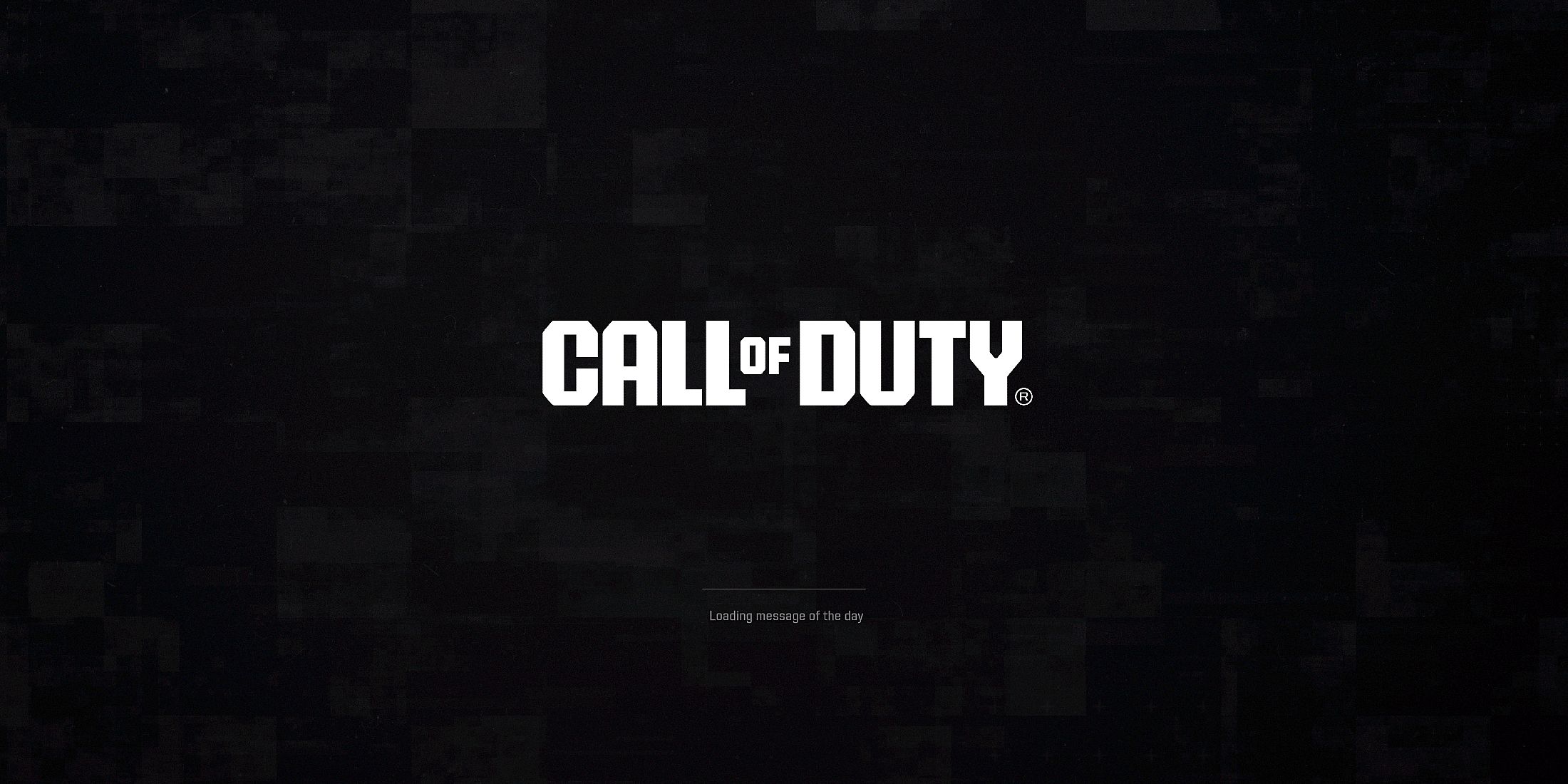
However, while Black Ops 6 and Warzone continue to receive seasonal updates, some players are experiencing a frustrating issue that is hindering their access to the game. A recent problem has emerged, primarily affecting PC gamers, causing the game to become stuck on the loading screen for the message of the day. Below are some possible solutions to address this issue.
Solution #1: Force Close Call of Duty HQ
The initial resolution for this problem is to restart Call of Duty HQ on your gaming platform. Unfortunately, players will need to force close the game since they cannot restart the app from within the game. Here’s how to force close Call of Duty HQ:
- For Steam, open the client, find Call of Duty HQ, and select the «Stop» option.
- For Battle.net and the Xbox App, launch Task Manager, right-click on Call of Duty, and choose «End Task.»
- Across all platforms, try rapidly pressing the ESC key, which may bring up the option to Exit to Desktop. Click «Yes.»
If successful, restart Call of Duty and check if the issue is resolved. While it might not be a permanent fix, there are additional solutions players can explore.
If you are unable to switch windows to use Task Manager or Steam, try pressing Alt+Enter simultaneously. This action will switch Call of Duty into Windowed Mode, enabling you to minimize it. Pressing Alt+Esc can also minimize the game.
Solution #2: Verify Game Files Integrity
Another option to resolve the issue is to perform a scan and repair or verify the integrity of the game files on PC, available via Steam, Battle.net, and the Xbox App. Some players have reported success with this method, which typically needs to be executed before launching Call of Duty or Black Ops 6 to prevent getting stuck on the loading screen. Below are the instructions for each platform:
Steam
- Access the Steam Library and right-click on Call of Duty.
- Select «Properties.»
- Navigate to «Installed Files» and click «Verify Integrity of Game Files.»
Battle.net
- Go to Call of Duty HQ.
- Click on Options and select «Scan and Repair.»
- Click «Begin Scan» and wait for it to finish.
Xbox App
- Open the Xbox App.
- Right-click on Call of Duty and choose «Manage.»
- Select «Files,» then choose «Verify and Repair.»
Solution #3: Force Windowed Mode & Press Space Bar
This unconventional method might be helpful for players who are stuck on the loading message in Black Ops 6 and Warzone. To try this workaround without exiting the game, follow these steps:
- Start Call of Duty.
- As soon as the game starts to load, immediately press Alt + Enter to switch to Windowed Mode.
- During the initial loading screen, continuously press the Space Bar.
This method, shared by a user on Reddit, can help players bypass the error and successfully enter Warzone. It should also work for Black Ops 6, as both titles utilize Call of Duty HQ for launching. However, keep in mind that this is merely a workaround and does not address the fundamental issue.
Additional General Fixes
Run Call of Duty as Administrator
- Press the Windows key and search for Call of Duty.
- Instead of clicking «Open,» choose «Run as Administrator.»
- Then launch Call of Duty as usual through your preferred platform.
Launch Call of Duty in Safe Mode
For Battle.net:
- Go to «Settings» (the cogwheel next to «Play»).
- Navigate to «Game Settings.»
- Click the drop-down on «Call of Duty» for more options.
- Check «Additional command line arguments.»
- Input -safe in the designated box.
- Launch Call of Duty.
For Steam:
- Open Steam and go to «Library.»
- Right-click on «Call of Duty» and choose «Properties.»
- In the «General» tab, access «Launch Options.»
- Enter -safe in the provided box.
- Launch Call of Duty.
Use -DX11 Launch Option
For Battle.net:
- Navigate to «Settings» (the cogwheel next to «Play»).
- Go to «Game Settings.»
- Click the drop-down on «Call of Duty» to see more options.
- Check «Additional command line arguments.»
- Enter -dx11 in the specified box.
- Launch Call of Duty.
For Steam:
- Open Steam and access «Library.»
- Right-click on «Call of Duty» and select «Properties.»
- In the «General» section, go to «Launch Options.»
- Input -dx11 in the provided box.
- Launch Call of Duty.
Additionally, ensure your graphics drivers are up to date. As a last resort, you may consider deleting the Call of Duty folder and completely reinstalling the game, but only do this if all other troubleshooting methods have been tried.