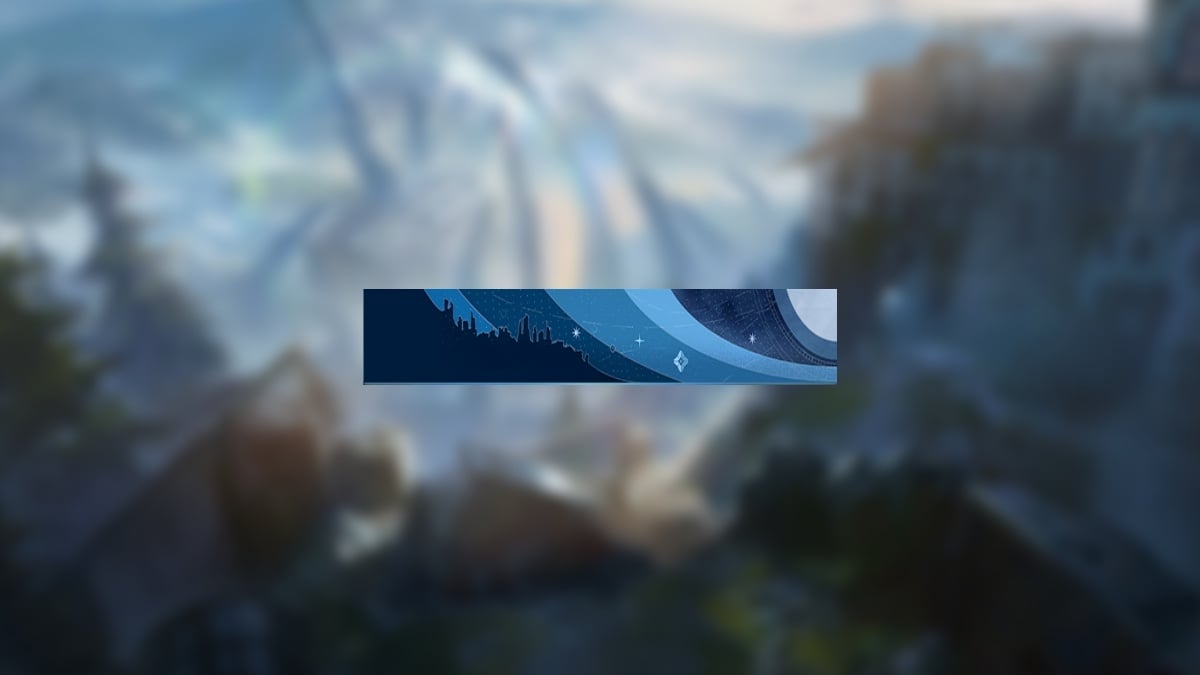
With the introduction of Destiny: Rising, players can unlock several rewards, and this includes bonuses for those engaged with Destiny 2. Gamers can secure a new emblem by participating in the mobile game’s activities.
Here’s the guide to obtain the Starboard Forward emblem in Destiny 2.
Steps to Unlock Starboard Forward Emblem in Destiny 2
The Starboard Forward emblem in Destiny 2 is part of a promotional event tying together Destiny 2 and the newly launched mobile game, Destiny Rising. To acquire the emblem, you need to download Destiny Rising (which is accessible on PC as well), and complete the Bear the Light event.
This event will be available until September 26, and participants must fulfill three tasks:
- Finish Chapter 1-1
- Finish Chapter 2-1
- Achieve Team Level 21
The Chapter objectives align with the main storyline of the game. Continue progressing through primary quests and meet objectives in the Handbook to advance through the Chapters. It takes about three to four hours of gameplay to reach Chapter 2-1.
Your Team Level corresponds to your account level in Destiny: Rising. Increasing this level unlocks new features, activities, and rewards. Leveling up can be accomplished by completing quests, engaging in Adventures, and exploring the initial area, Jiangshi Metro.
Redeeming the Starboard Forward Emblem in Destiny 2
Once you’ve satisfied the event requirements in Destiny: Rising, a pop-up will display your emblem code on the event screen. You can then redeem this code on Bungie’s website to add it to your Destiny 2 account.
To redeem the code on Bungie’s site, follow these steps:
- Go to the Bungie.net Code Redemption page.
- Log into your Bungie account.
- You can also use the account linked to your Destiny 2/Bungie account, such as PSN, Xbox Live, Steam, etc.
- Select the Code Redemption tab.
- Input your code.
After completing these steps, launch Destiny 2 and check for the emblem in the Collections. Typically, emblems unlocked via special promotions and events can be found in the General tab. They might not always appear at the end, so ensure you check all pages.