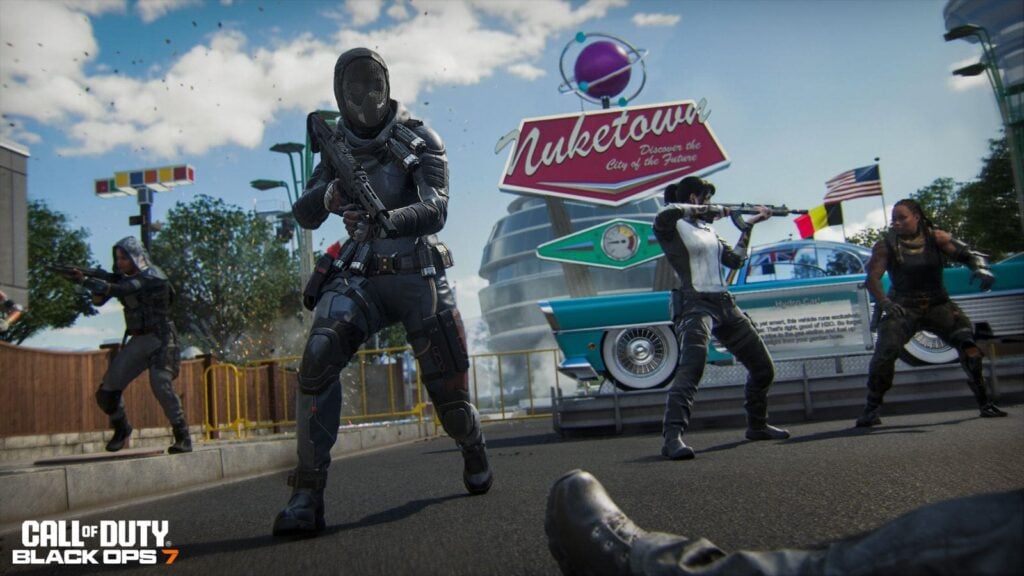
Optimizing your graphics settings in «Call of Duty: Black Ops 7» can significantly enhance your gaming experience, offering a competitive edge over players who haven’t fine-tuned their setups. Adjusting these settings allows for improved frame rates, decreased lag, and overall smoother gameplay, regardless of whether you’re using a budget, mid-range, or high-end PC.
For those seeking guidance, here is a comprehensive overview of the ideal graphics configurations that can enhance performance in «BO7» across various systems. These recommendations are based on a typical setup with a 1080p resolution and hardware such as an AMD Ryzen 7600X paired with an NVIDIA RTX 4060, yielding consistently smooth performance.
As you delve into the settings, remember that these suggestions prioritize frame rates, which may come at the expense of some graphical fidelity. Feel free to tweak individual options to suit your preferences and hardware capabilities.
Display Settings
To secure the most fluid display, ensure you are running the game in Fullscreen Exclusive mode, aligning your display monitor, graphics adapter, refresh rate, and resolution with your system specifications. A brightness setting of 55 often strikes a good balance for visibility, making potential enemies more discernible.
If you’re using NVIDIA Reflex Low Latency, confirm whether your setup is CPU-bound. Enable Telemetry within the game’s Interface settings; if the CPU time exceeds GPU time, switch Reflex to On + Boost to optimize performance.
Power Settings
For optimal power usage, set the Eco Mode Preset to Custom (Off) and disable V-Sync options in both gameplay and menus. Establish custom frame rate limits that mirror your monitor’s refresh rate and maintain a lower limit of 60 frames per second in menus to prevent frame drops. It’s also advisable to keep HDR settings disabled for better performance.
Quality Settings
When adjusting the quality settings, aim for a Custom graphic preset with the render resolution set to 100%. Turn off dynamic resolution and NVIDIA DLSS Frame Generation while keeping FidelityFX CAS for upscaling set between 80 and 90 for a sharper image without compromising responsiveness.
Texture and detail settings can be dialed down to enhance frame rates, with suggestions to use low or normal settings for texture resolution and detail quality, while turning off effects such as bullet impacts and persistent effects. Additionally, keep depth of field disabled to maintain clarity while aiming.
Field of View and Camera Settings
The field of view (FOV) should be adjusted between 110 to 120, depending on your comfort level. Start at 110 if you’re new to higher values, and gradually increase as you acclimatize. Set the ADS field of view to Affected to reduce visual recoil when aiming down sights, while minimizing camera motion blur can enhance focus during gameplay.
By following these guidelines, players can tailor their «Call of Duty: Black Ops 7» gaming experience, ensuring both optimal performance and visual clarity. Whether you’re a seasoned veteran or a newcomer, these settings can help elevate your gameplay and enjoyment of the game.