If you’re an avid player of VALORANT, you may be curious about the total amount of time you’ve invested in the game. Although the process for viewing this information differs somewhat from what you might find on other platforms like Steam, there is a specific method you can follow to track your hours.
Unlike typical PC games that feature built-in time counters, VALORANT does not provide a direct way to see your total playtime. However, by utilizing a third-party resource, you can get insights into how much time you’ve dedicated to the game.
Checking Your Playtime in VALORANT
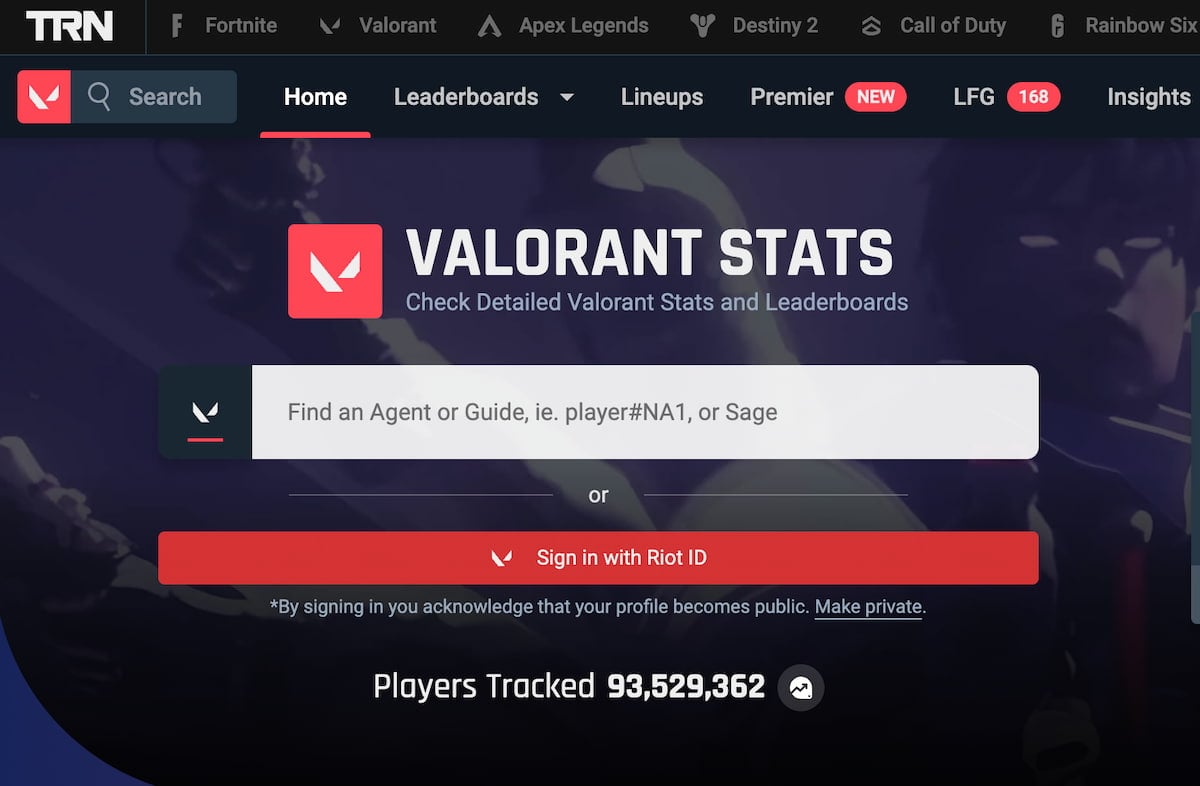
The most effective third-party tool to use for monitoring your playtime in VALORANT is Tracker.gg. If you haven’t used this tool before, you will need to log in with your Riot Games account to access your statistics. Once you’re logged in, you can view various stats including kills, preferred maps, and win rates.
Follow these steps to access your playtime data on Tracker.gg:
- Visit Tracker.gg and navigate to the VALORANT section at the top of the page.
- Click on «Sign in with Riot ID» and input your credentials.
- On your profile, set the stats filter to «All Acts» on the right side to view your overall data.
- Check your gameplay hours under the game mode filters.
Note: Tracker.gg does not provide a total cumulative playtime but will detail how many hours you’ve spent in various game modes. You can add the hours from core modes like Unrated, Competitive, and Premier to get your total playtime.
Once you have signed into Tracker.gg, you can easily search for your stats by entering your Riot ID (your in-game name followed by a # and four digits). If you wish to make your profile private again, simply select «Make private» under the sign-in option.
Alternatively, you could create a dedicated account on Tracker.gg and link it to your VALORANT profile for convenient access to your stats across various games.
Tracking Your Playtime per Agent in VALORANT
In addition to general playtime, Tracker.gg also enables you to see how many hours you’ve spent playing each agent, allowing you to assess where you excel and where you might need improvement.
To view your playtime for individual agents:
- Look for the «Top Agents» section in the game mode overview (this section also highlights the best maps for your top three agents).
- Click «View All Agents» on the right side.
- Sort agents by time played.
Keep in mind: These stats are also segmented by game mode, so adjust the filters to gauge your performance with each agent across different modes. In Competitive matches, you can leverage this data along with map insights to inform your agent selections.
Remember to take the hour counts from external platforms with a degree of caution, as they may not account for every match or may overlook certain timeframes. Nevertheless, they can provide a solid estimate of the hours you’ve invested in VALORANT.