VALORANT has introduced a new Replay system that automatically records matches and allows players to review them. While many features are user-friendly, some aspects may seem intricate, making a guide helpful.
Replays, which have been highly anticipated for years, were officially launched in VALORANT with patch 11.06 during Season V25, Act Five. Although there were several reasons for the delay by Riot Games, the tool is now available for players to utilize.
Here is a comprehensive guide on VALORANT Replays.
Availability of VALORANT’s Replays Feature
The Replays feature is presently accessible exclusively on the PC version of VALORANT across all regions except for China. Console users will receive this feature in patch 11.10, while players in China can access it in patch 11.07b.
How to Download Replays in VALORANT
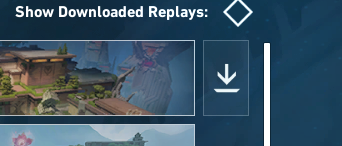
As of now, Replays are available for Unrated, Competitive, Swiftplay, and Premier modes. After completing a match in VALORANT, navigate to the details page and look for a download icon (downward arrow) to save the replay.
To download replays for older eligible matches, visit your Career page, where a download button will be situated on the right side of each match card. Replays can only be retrieved for matches played in the live patch, starting from patch 11.06, released on September 16.
Description of All Replay Features in VALORANT
After downloading a replay, click the play button to watch it. You will be able to replay the entire match with a horizontal Replay HUD for better control over your viewing experience.
The following are the functions of each button on the left:
| Button Name | Function |
|---|---|
| Pause/Play Button | Used to pause or play the replay. |
| Rewind | Rewinds the replay by five seconds. |
| Fast Forward | Fast forwards the replay by five seconds. |
| Round Skip | Jump to the next or previous round. |
| Speed Control | Adjust the playback speed from 0.1x to 8x. |
| Change Camera View | Switch between player’s perspective and third-person observer mode. |
| Replay Settings | Access additional settings to enhance your replay experience. |
| Eye Icon | Toggle the visibility of the Replay UI. |
While viewing a replay, you can adjust additional settings by clicking the settings icon on the UI bar.
For further Replay customization, navigate to the in-game settings and explore the Viewing tab, where you will discover more options for tailoring your replay experience, including custom matches.
Though Riot has not announced any new features yet, players can anticipate additional functionalities for the Replay system in the future.
Essential Replay Keybinds for VALORANT
For a seamless experience with the VALORANT Replay features, familiarize yourself with these keyboard shortcuts:
| Key | Function |
|---|---|
| Space | Play/Pause |
| Left Arrow Key | Rewind five seconds |
| Right Arrow Key | Fast forward five seconds |
| T | Toggle Replay UI |
| N | Show Combat Report |
| . | Toggle Player Loadout visibility |
| Scroll Button (Mouse) | Toggle cursor visibility |
| Esc | Open game menu or exit |
| V | Toggle Camera Mode |
| Mouse Right Button | Observe previous player |
| Mouse Left Button | Observe next player |
| 1 | Observe first player |
| E | Fly up |
| Q | Fly down |
Can You Download or Share Replays in VALORANT?
Currently, sharing VALORANT replays with others or creating clips is not an option.
Technically, downloading a replay allows you to view it, but it is not saved to your PC; it can only be accessed through the game client.
Can You Use Replays to Report Cheaters in VALORANT?
Replays are not dependable evidence for reporting cheating. According to Riot, players in replay videos may exhibit unusual movements or aim, which can result from ping differences between the client and server, rather than cheating. Therefore, it is advisable to use the in-game reporting system for such cases.
However, the Replay system can confirm if a player is intentionally throwing or sabotaging a match. Even if they employ scripts to avoid being flagged for being away from keyboard, replays provide the evidence needed without resorting to external recording tools.