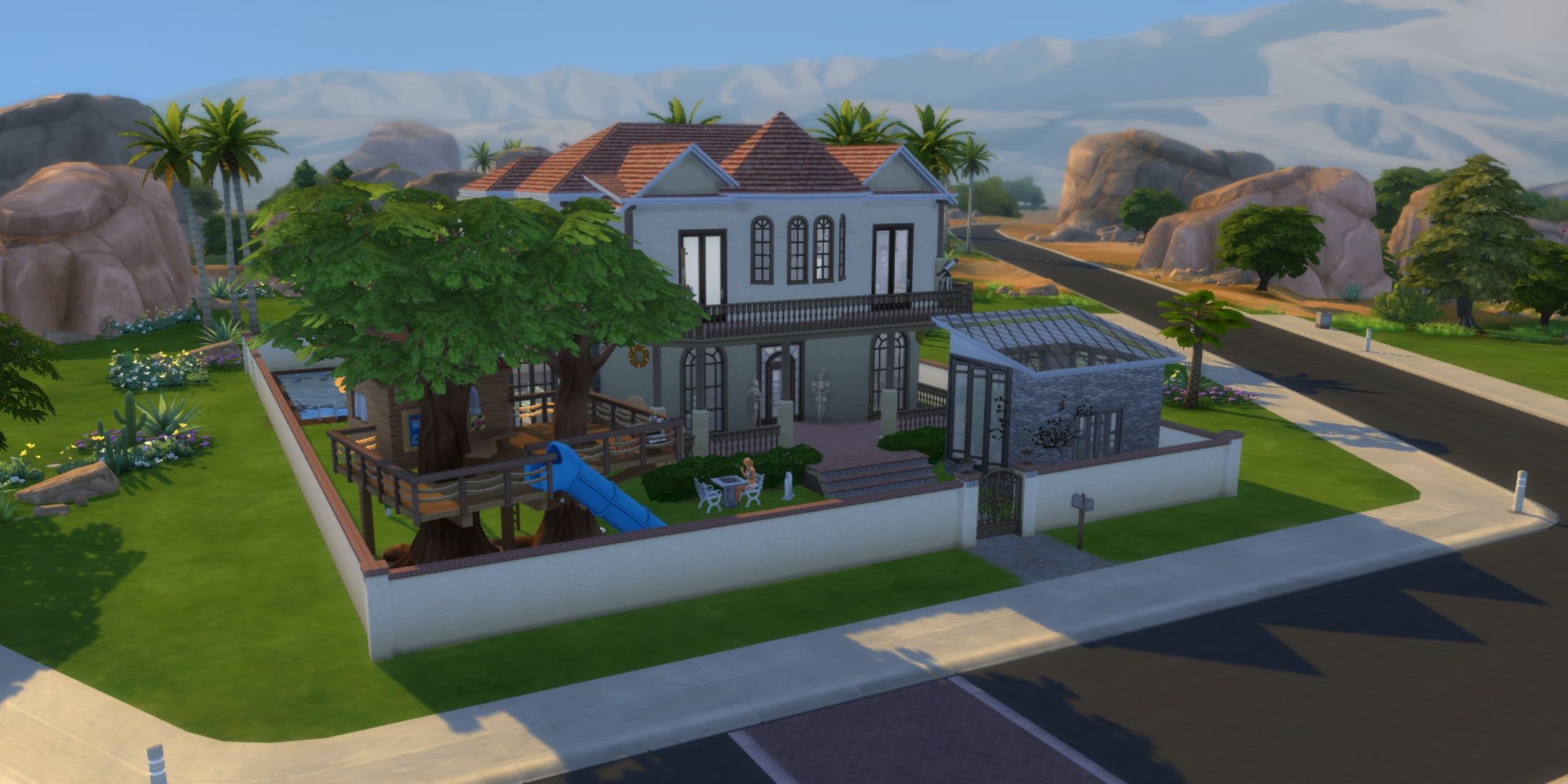
The Sims 4 includes a gallery feature where players can showcase their creations, encompassing households, homes, rooms, as well as items and plants. Users can explore a wide array of content on the The Sims 4 gallery and also have the ability to upload their custom builds for others to enjoy.
This guide provides detailed instructions for players on how to save their lots to the Sims 4 library, as well as how to share those lots on the gallery, enabling fellow Simmers to access and download these creations for their own gameplay.
Steps to Save a House to the Library in The Sims 4
After building a house on a lot, players may want to keep it for future use or for backup. If they choose not to share their creation with the community via the gallery, they can save it to their personal library instead.
To save a house to their library, players need to enter Build Mode on the lot, click the Save to My Library button, select Save Lot, provide details about the lot, including the name, number of rooms and bathrooms, and a description if desired. Finally, click the arrow icon located at the bottom right corner of the screen to save the lot to the player’s library.
Steps to Share a House on the Gallery in The Sims 4
Players have the option to either save their newly designed homes to their libraries or share them with the broader community by uploading to the gallery.
To share a house on the The Sims 4 gallery, players must select the Save Lot button found in the Build Mode toolbar, choose Save Lot, fill in the necessary information about the lot, and then click the button at the bottom left of the screen. This will allow other players to find and download the house to their libraries from the gallery.
Additionally, players have the option to individually select rooms in Build Mode and save or upload them using the option Save Room instead.