In Battlefield 6, every frame matters, and optimizing graphical settings can significantly impact your gameplay experience. If you’re looking to boost FPS, ensure smooth performance, and gain that crucial edge to secure more uninterrupted kills, we’ve compiled some helpful tips for you.
The launch of the open beta for Battlefield 6 has captivated the gaming community, showcasing stunning visuals and satisfactory performance optimization. Although the highly awaited full release is scheduled for October, players can currently enjoy the game for free during the beta weekends happening throughout August.
While Battlefield 6 automatically adjusts settings based on your device when initiated, certain adjustments can enhance performance and provide that much-needed improvement. Below are some of the best settings for Battlefield 6 that can help elevate your FPS and minimize annoying stutter.
Optimal BF6 Settings for Maximum FPS and Zero Lag
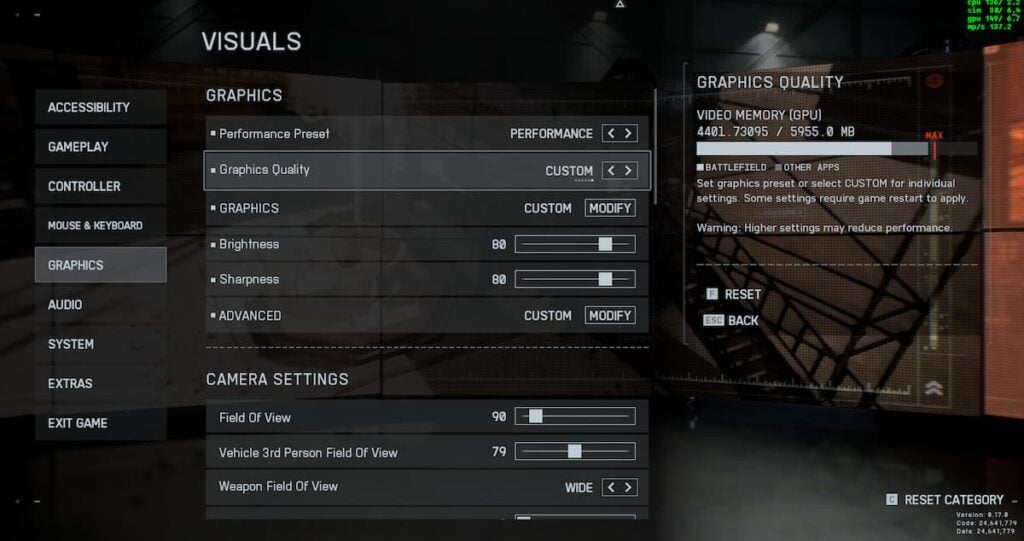
To modify the graphics settings in Battlefield 6, click on the gear icon at the top of the interface and navigate to the Graphics (Visuals) tab. Let’s begin with the Graphics section.
Graphics
| Setting Name | Value |
|---|---|
| Performance Preset | Performance |
| Graphics Quality | Low (Medium if your device can manage it) |
| Graphics | Low (Medium if your device can manage it) / Custom |
| Brightness | 80 |
| Sharpness | 80 |
| Advanced | Custom |
Setting everything to low will maximize FPS, but you risk missing out on the game’s visually realistic aspects. To balance this, we suggest selecting Custom for Graphics settings and adjusting based on your device’s performance.
Here’s a custom configuration you can use for each graphics feature to find a middle ground between visual quality and FPS.
| Graphics Setting | Value |
|---|---|
| Texture Quality | High |
| Texture Filtering | Ultra |
| Mesh Quality | Low |
| Terrain Quality | Low |
| Undergrowth Quality | Low |
| Effects Quality | Low |
| Volumetric Quality | Low |
| Lighting Quality | High |
| Local Light & Shadow Quality | Low |
| Sun Shadow Quality | Low |
| Shadow Filtering | PCF |
| Reflection Quality | Medium |
| Screen Space Reflections | Low |
| Post Process Quality | Ultra |
| Screen Space AO & GI | GTAO Low |
| High Fidelity Objects Amount | Medium |
Keep in mind that these configurations may not be ideal for very low-end systems. Most contemporary gaming PCs that meet the minimum specs should be able to run the game with these settings. If you experience frame drops and stuttering, it might be wise to start with the Low Graphics preset and adjust gradually.
For the Advanced settings that can be customized, below is our recommended setup for optimal gameplay.
If you prefer Anti-Aliasing over Upscaling, choose either DLAA or XeSS.
In the Camera and Display sections, minimal adjustments are needed, as default settings are typically effective.
Currently, no other settings significantly influence performance. You can either adjust these based on your needs or stick with the defaults.
How to Select the Best BF6 Settings for Your Device
The ideal Battlefield 6 settings are contingent upon your CPU, RAM, and GPU (VRAM). When adjusting these settings, bear in mind a key principle: higher visual fidelity leads to lower frame rates. Consequently, you’re at a higher risk of missing shots. Since you’re reading this, we assume you already have a machine capable of running the game (check the minimum requirements if needed).
To enhance the performance of Battlefield 6, it’s crucial to manage your device’s resources wisely. Some settings are more CPU-intensive, while others rely on the GPU and VRAM. To achieve maximum FPS, we recommend scaling back graphics options that heavily tax the CPU. Instead, focus on visuals relying on GPU and VRAM.
Fortunately, Battlefield 6 makes it simple to identify CPU-heavy settings: hover over the graphics setting name (accessible in the Modify section) to view its CPU usage stats on the right. Below is a helpful reference table.
| Graphics Setting | Dependent on? |
|---|---|
| Texture Quality | VRAM |
| Texture Filtering | GPU |
| Mesh Quality | CPU, GPU, VRAM |
| Terrain Quality | CPU, GPU |
| Undergrowth Quality | CPU (medium), GPU |
| Effects Quality | CPU, GPU, VRAM (medium) |
| Volumetric Quality | GPU |
| Lighting Quality | VRAM |
| Local Light & Shadow Quality | CPU, GPU, VRAM (medium) |
| Sun Shadow Quality | CPU, GPU |
| Shadow Filtering | GPU |
| Reflection Quality | GPU (medium) |
| Screen Space Reflections | GPU |
| Post Process Quality | GPU (medium) |
| Screen Space AO & GI | GPU |
| High Fidelity Objects Amount | CPU |
To enhance FPS and performance in Battlefield 6, apply higher settings values only to those marked as GPU or VRAM-intensive.