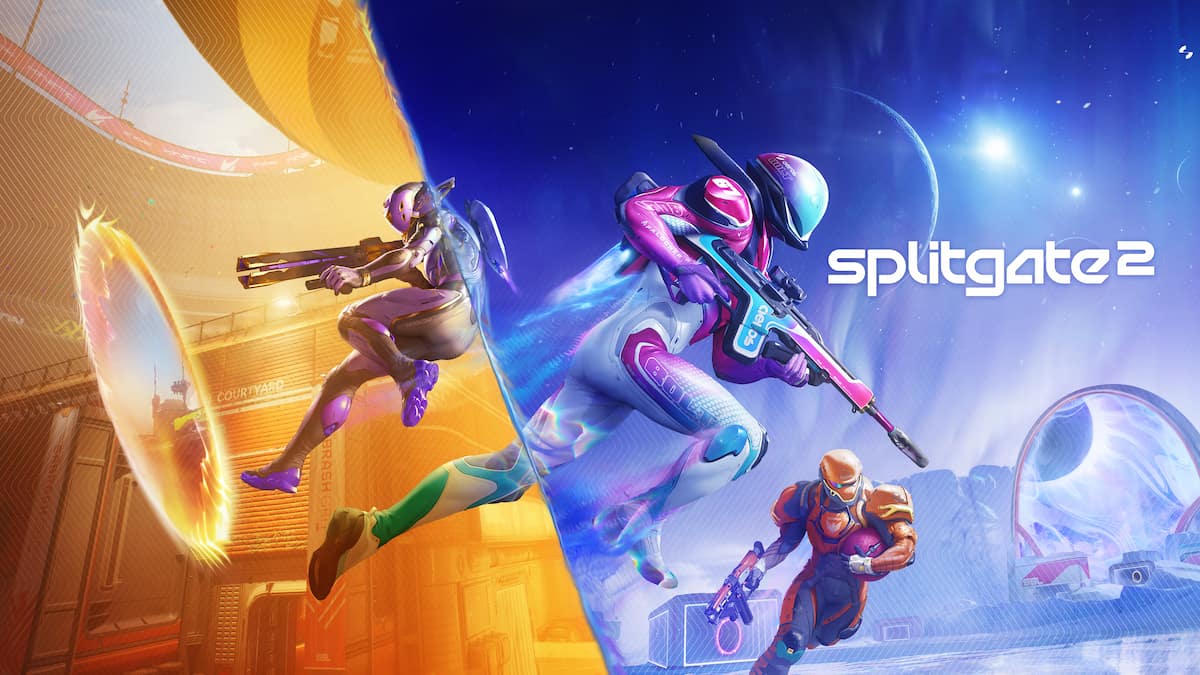
Splitgate 2 is making a significant impact in the gaming world, similar to its previous version, but numerous players are facing issues due to frequent crashes of the game.
Let’s explore some possible solutions to address the crashes occurring in Splitgate 2.
Resolving Crash Issues in Splitgate 2 on PC
While there isn’t a specific cause for the crashing in Splitgate 2 on PC, you can try the following remedies to see if they help resolve the problem:
Restart the Game
One of the simplest methods to tackle the crashing of Splitgate 2 is to restart the game. This can refresh the application and potentially fix any glitches.
Restart the Game Launcher
If you are using platforms like Epic Games, Steam, or the Xbox App to access Splitgate 2, you can close them from the system tray in the bottom right corner of your taskbar. Reopen these platforms and check if the crashing continues.
Restart the Computer
Restarting your computer may resolve various errors, including sluggish performance and low frame rates. For a thorough reset, consider following these steps:
- Turn off your PC.
- Unplug the power cable.
- Hold down the power button for 30 seconds.
- Reconnect the power cord.
- Start your PC and see if the issue persists.
Update Windows
Failing to update Windows can often lead to multiple application problems. Always ensure that you check for updates when experiencing issues. An icon indicating updates will appear next to the system tray whenever updates are available, or you can find them in the «Windows Update» section.
Run Splitgate 2 as an Administrator
Launching Splitgate 2 with administrative privileges can help the game bypass any restrictions from your system. To do this:
- Access the folder where Splitgate 2 is installed.
- Right-click on PortalWars2Client.
- Navigate to the «Compatibility» tab.
- Select the option to «Run this program as an administrator.»
- Hit «Apply.»
- Press «OK.»
Ensure you launch Splitgate 2 from this installation folder after clicking «OK.»
Update Graphics Drivers
Similar to Windows updates, having outdated graphics drivers can lead to crashes. You should utilize your graphics card manufacturer’s software or website to install the most recent drivers.
Verify Game Files
Checking the integrity of your game files can fix any corrupted or missing files. This can be done in the «Installed Files» area of the Splitgate 2 page on Steam.
Check System Specifications
It is crucial to verify that your PC meets the minimum and recommended requirements for Splitgate 2 to prevent errors:
- Minimum:
- 64-bit processor and operating system required
- OS: Windows 10/11
- Processor: Intel Core i3 6100/i5 2500K or AMD Ryzen 3 1200
- Memory: 8 GB RAM
- Graphics: NVIDIA GeForce GTX 960 or AMD Radeon RX 470
- DirectX: Version 11
- Network: Broadband Internet connection
- Recommended:
- 64-bit processor and operating system required
- OS: Windows 10/11
- Processor: Intel Core i5 6600K/i7 4770 or AMD Ryzen 5 1400
- Memory: 12 GB RAM
- Graphics: NVIDIA GeForce GTX 2080 or AMD Radeon RX 580
- DirectX: Version 12
- Network: Broadband Internet connection
- Adjust in-game graphics settings based on your system.
Adjust Launch Options
You can enter «-dx11» or «-dx12» in Splitgate 2 launch options to try a more stable version of DirectX.
Close Background Applications
Shut down applications that are not in use to allocate more resources to Splitgate 2. Programs such as the Epic Games launcher and browsers with multiple tabs can take up unnecessary system performance.
Disable Overlays
Overlays from various applications can conflict with games, resulting in issues like crashes. It is advisable to deactivate overlays from Discord, Steam, and other applications like the Xbox Game Bar, MSI Afterburner, Rivatuner Statistics, etc.
Reinstall Splitgate 2
If none of these solutions work, consider reinstalling Splitgate 2. This could help resolve any underlying problems causing the crashes.
Wait for an Official Fix
If all else fails, the only option may be to wait for the developers at 1047 Games to address the issue.