The launch of Borderlands 4 on PC has been quite difficult for many users. If you’re seeking optimal graphics settings for the PC version, here’s a comprehensive guide.
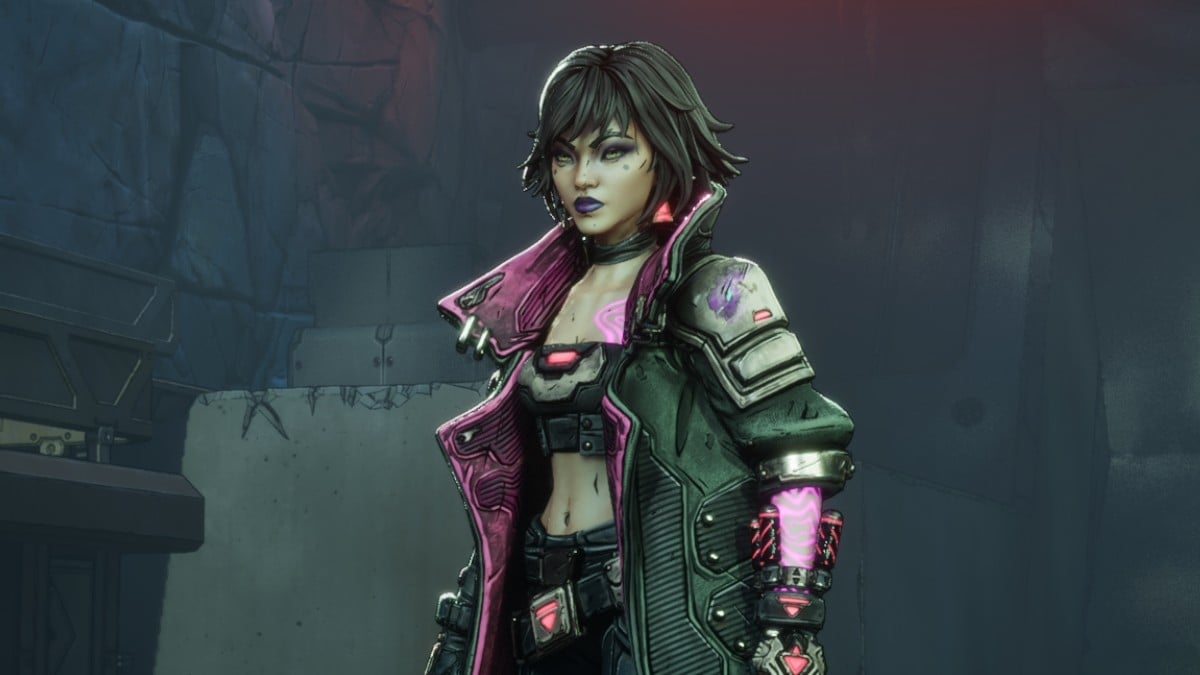
Borderlands 4 marks the latest installment in 2K Games’ popular loot-driven shooting series, developed using Unreal Engine 5. However, many players have reported poor performance issues on PC at launch, resulting in a plethora of negative reviews on platforms like Steam.
Upon starting the game on PC, I encountered significant stuttering. Nevertheless, I found a way to enhance the stability of the framerate for a more enjoyable gameplay experience. Below are the graphics settings I applied.
Note: My setup includes an RTX 3060Ti, 32GB of DDR4 RAM (3200MHz), and a Ryzen 5 3600. Ensure your system meets the necessary requirements.
Optimal Graphics Settings for Borderlands 4 on PC
Basic Settings
- Display Mode: Windowed Fullscreen
- Resolution: Native resolution of your monitor (1920×1080 in my setup)
- Display Stats: None
- Limit Frame Rate: Off
- Custom FPS Limit: Off
- Vertical Sync: Off
- Field of View: 110
- Vehicle Field of View: 100
Advanced Settings
General
- Graphics Preset: Medium
- Auto-Detect Graphics Preset: Run Auto-Detect
- Anti-Aliasing: Enabled
Resolution Scaling
- Upscaling Method: FSR
- Upscaling Quality: Quality
- Spatial Upscaling Quality: Disabled
- Scene Capture Quality: High or Full Resolution
- Frame Generation: On
Environment Settings
- HLOD Loading Range: Medium
- Geometry Quality: Medium
- Texture Quality: Medium
- Texture Streaming Speed: Medium
- Anisotropic Filtering Quality: x4
- Foliage Density: Medium
- Volumetric Fog: Low
- Volumetric Cloud: Low
- Shadow Quality: Low
- Directional Shadow Quality: Low
- Volumetric Cloud Shadows: Disabled
- Lighting Quality: Low
- Reflections Quality: Low
- Shading Quality: Low
Post-Processing Settings
- Post-Process Quality: Medium
- Motion Blur Amount: 0
- Motion Blur Quality: Off
Despite using an RTX card, I opted for FSR as my upscaling method because the alternative methods did not provide consistent framerates. With FSR enabled, I left Frame Generation on. There is some input lag, but it is tolerable given that the game is primarily a PvE experience.
Moreover, I did not notice a substantial decline in visual quality, which was a bonus for me. I could achieve what felt like higher framerates without compromising on quality, allowing for high-resolution screenshots for the guides I am creating.
For performance evaluation, refer to the accompanying image. FSR indicated that I achieved nearly double the frames, while in reality, I experienced a range of 25 to 55 frames per second depending on the environment, whether my Vault Hunter was inside or outside during missions or exploration. If your configuration resembles mine, consider trying out these settings.