Battlefield 6’s integrated FPS counter allows players to monitor frame rates both during gameplay and in menus, enhancing the overall gaming experience. However, the method to access and activate it is not straightforward.
Battlefield 6 has recently begun its open beta phase, leading up to its complete launch expected in October 2025. This beta is available for free during specific periods. Although reporting bugs is optional, it serves as an ideal chance to identify and address performance concerns ahead of the full release, particularly with the help of the FPS counter.
For those having difficulty locating and enabling the FPS counter in Battlefield 6, this guide provides all the necessary steps.
Steps to Activate the FPS Counter in Battlefield 6
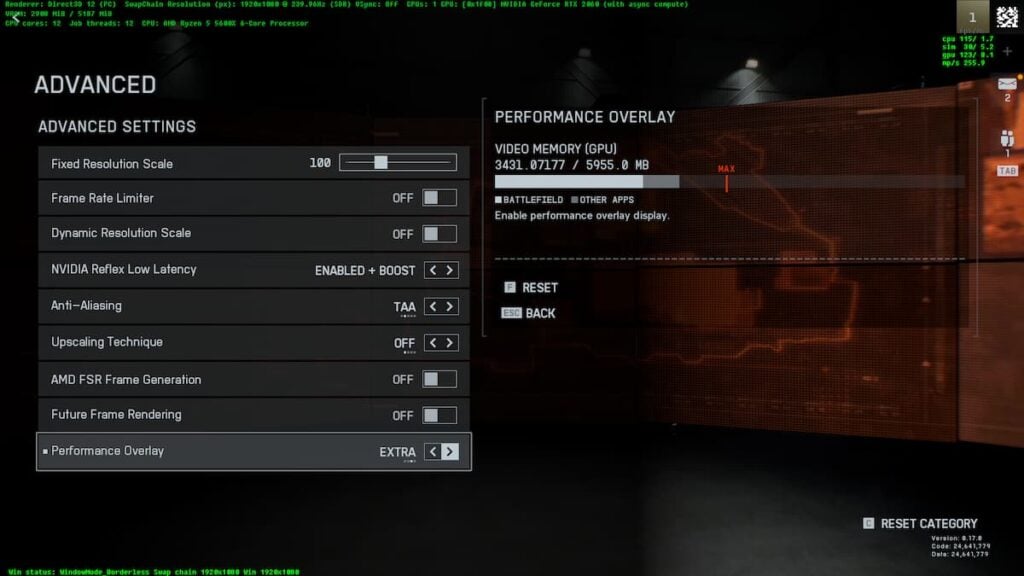
If you’ve played previous titles in the Battlefield series, you might remember that activating the FPS counter was a simple task: just enable the Show FPS option found in the Networking settings. In Battlefield 6, however, this feature is categorized under the title «Performance Overlay.»
To enable the FPS counter in Battlefield 6, follow these instructions:
- Access Settings by clicking on the gear icon located in the upper menu.
- Navigate to the Graphics section.
- Find and select the Advanced option within the Graphics section (the first subsection). This will allow modifications.
- Locate the Performance Overlay option and choose either Simple or Extra. Select Simple for basic frame information or Extra if you wish to include broader system and display metrics as well.
That’s all there is to it! The FPS counter or Performance Overlay is now active in Battlefield 6.
Alternatively, you can utilize a console command to access the FPS counter in Battlefield 6 (this is exclusively available for PC players). Here’s how:
- Open Settings by clicking the gear icon at the top.
- Go to the System tab and enable Command Console located in the Setup section.
- Return to the home screen and press the tilde key (~).
- In the input box, type «PerfOverlay.DrawFps 1» and hit Enter to activate the simple version of the FPS counter.
- To disable it, type «PerfOverlay.DrawFps 0» into the console and press Enter.
If you encounter issues with these methods, it may be due to a bug. Restarting the game could resolve minor glitches that prevent functionality. If problems persist, reaching out to DICE to report the bug is recommended for assistance.