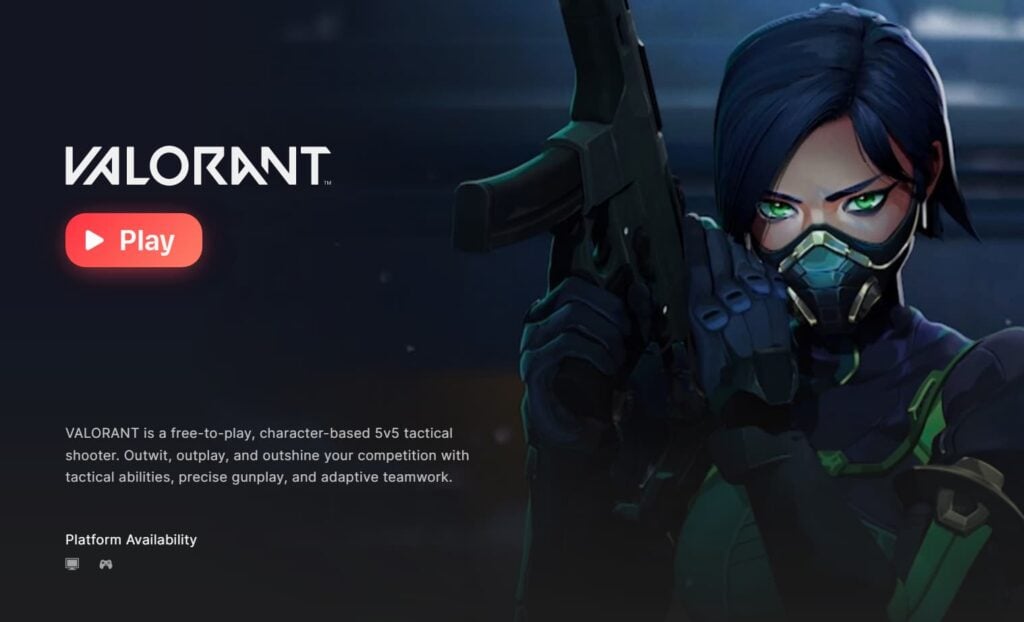
Nothing is more frustrating than getting ready to play VALORANT after a long day, only to be met with a vague «checking wait time» message instead of the Play button. Don’t worry; we’re here to guide you back to your game.
Issues are commonplace in online gaming, particularly with popular titles like VALORANT. However, it doesn’t mean you have to endure the annoyance they cause. While some problems require intervention from Riot Games, many can be resolved on your own with a few straightforward steps.
Here’s an overview of what the «checking wait time» message signifies in VALORANT and how you can resolve it.
Resolving the VALORANT Checking Wait Time Error
The «checking wait time» issue has been gaining recognition among players, especially since the introduction of Season V25, Act Two.
This message often replaces the Play button in the Riot Client app, preventing players from launching VALORANT. While there is no official explanation, it likely indicates server overload due to many users attempting to access the game simultaneously. Most players report encountering this message during patch launches or when reinstalling the game, although it can also appear randomly.
Regardless of the cause, here are some potential solutions to address the «checking wait time» error in VALORANT. You might need to try multiple methods from the list below to find the one that works for you.
Check for Server Issues or Network Problems
Before proceeding with detailed solutions, verify whether VALORANT is experiencing server downtime or scheduled maintenance. Riot often shares updates via their social media, such as on VALORANT‘s X account. You can also connect with friends to see if they are facing similar issues. If they are, it’s advisable to wait instead of troubleshooting further.
If only you are encountering the issue, assess your network conditions. Many errors in VALORANT can stem from a poor internet connection. Consider switching to an Ethernet connection or rebooting your router. Ensure you are not connected to a VPN, and confirm that your anti-virus settings are allowing the game and Riot Client access.
Exit and Relaunch the Riot Client App
If you are playing on a PC, right-click the Riot Client icon in the system tray and select Exit. Then, relaunch the Riot Client and log in with your account details again. The «checking wait time» message should be replaced by the Play button.
For console players, exit the Riot Client app as usual and reopen it. Ensure you’re signed out when exiting and then sign back in; this step often resolves the issue.
Restart Your Device
If you encounter the «checking wait time» error while downloading VALORANT, it’s best to wait and see if the problem resolves on its own. The client may not display an estimated wait time accurately, but it might still be installing the game and Vanguard in the background.
However, if the wait becomes unusually long and you suspect it might be stuck, rebooting your device could help. Note that you will need to restart the installation from the beginning once you turn your device back on.
Disable Auto Updates
If auto updates are enabled, turn them off by going to Riot Client app > Settings > VALORANT > Uncheck «Enable auto-update.» This might help to prevent the «checking wait time» message from appearing unexpectedly without an update.
Reinstall the Game
If none of the previous solutions solve your problem, a complete reinstall of VALORANT may be necessary (especially if the issue resides on the client’s end). While this step can be lengthy, it is often effective.
Should reinstalling fail to resolve the issue, your situation might require more specific assistance. Submitting a support ticket to Riot is advisable in that case, where you can seek personalized help.